
Find and organize your work in Library
Find Notes and Cards in Meminni Library, narrow the list, and choose a home for new work.
Open Library to find your study material. Choose a Notebook or Topic, then open its Notes and Cards in Focus. The Map screen is not available in the current version.
Notebooks and Topics
A Notebook holds a broad subject, such as Cell Biology. A Topic names one idea within it, such as Cell membrane. You can make a Topic a subtopic of another Topic. A Tag is a label you can use across different Topics.
Open a Topic
- In Library, choose Notebooks.
- Select a Notebook, such as Cell Biology.
- Choose Topics, then select a Topic, such as Cell membrane.
The Topic opens in Focus. Choose Notes for explanations or Cards for practice questions. Each view has its own search, filters, and create controls.
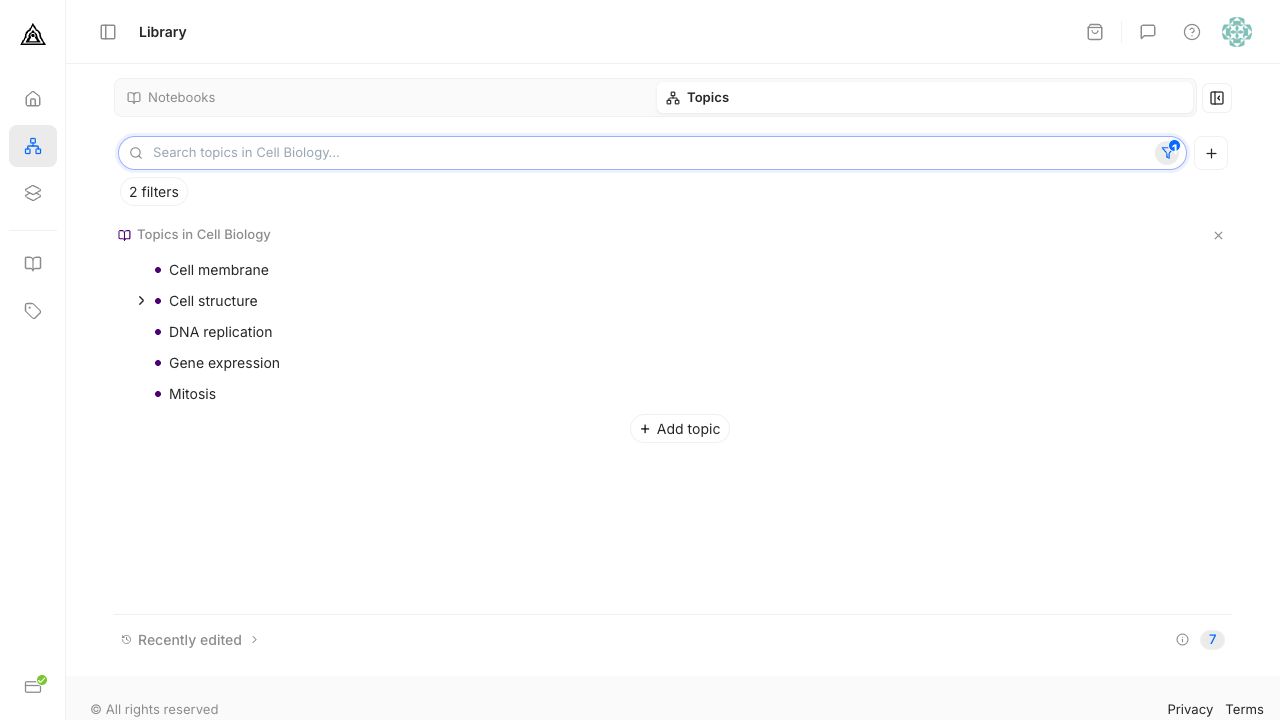
Use Filter and sort to narrow the Topics list by Notebook or change its order. If a Topic is missing, clear the filters or choose Show all topics. Choosing a Notebook narrows the list; it does not open a Topic by itself.
Choose where new work goes
Create a Note or Card from Library and check the Notebook and Topic shown before saving. A Card can also stay in Uncategorized if you have not chosen a place for it yet. You can move it later.
To add a Topic to a Notebook, choose Create topic in its Topics list. Enter a Topic name. You can also add Description and Notes. Choose Create topic to save it.
To add a Card to a Note, open the Note, choose Cards, then Add card to learning note. Read how to write a Note or connect Topics for those tasks.