
Add subtopics and related Topics
Put a Topic under a bigger idea, or link two ideas without making one a subtopic.
Use a subtopic when one idea belongs under another. Use Related when two Topics connect but neither belongs under the other.
For example, Membrane transport is a subtopic of Cell membrane. Cell structure can be related to Cell membrane without becoming its parent or child.
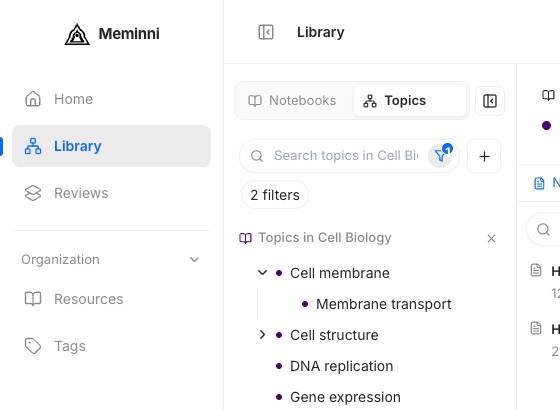
Add a new subtopic
- In Library, choose Topics and open the Notebook that holds the bigger idea.
- Find the parent Topic and choose Add subtopic to it.
- Keep Create a subtopic selected. Check the parent name in the dialog.
- Enter a name, such as Membrane transport, then choose Add subtopic.
The new Topic appears under its parent. Select it to open its Notes and Cards.
Put an existing Topic under a parent
- Find the Topic in the Topics list and choose Add subtopic.
- Choose Choose a parent.
- Pick the parent from the list. These choices are from the same Notebook.
- Check the arrow: it should point from the parent to the Topic you opened. Choose Set parent to save.
If the right parent is missing, check that you opened the right Notebook before saving.
Link two related Topics
- In the Topics list, right-click the Topic and choose Add Related.
- In Related topic, choose the other Topic. The list can include Topics from other Notebooks.
- Check both names, then choose Create link.
Related is the app's label for this link. It connects two ideas without making one a subtopic of the other. A Map screen is not available in this build, so there is no map to view the link on.
For help finding a Notebook or Topic, read Find and organize your work in Library. For editing, merging, or removing them, read Edit, merge, or remove Notebooks and Topics.